MatAdmin Kiosk turns an iPad or iPhone into a dedicated Self Check-In station for your front desk. The app is free and works with your existing MatAdmin account. It is not useful without an active MatAdmin account.
Before You Start
Before setting up the app, make sure you have:
- An active MatAdmin account.
- An iPhone or iPad running iOS 17 or later.
Get the App
Install MatAdmin Kiosk on the App Store on the iPhone or iPad you plan to leave at the front desk.
Connect the Kiosk
The recommended way to connect the app is with a kiosk link. On the Kiosk page in MatAdmin, create a kiosk link for the device. Paste the link into the app or open it on the device to connect the kiosk.
You can also sign in once with the owner account. This creates a check-in-only connection for that device that you can revoke later. The owner password is never stored on the device.
Use the Kiosk Day to Day
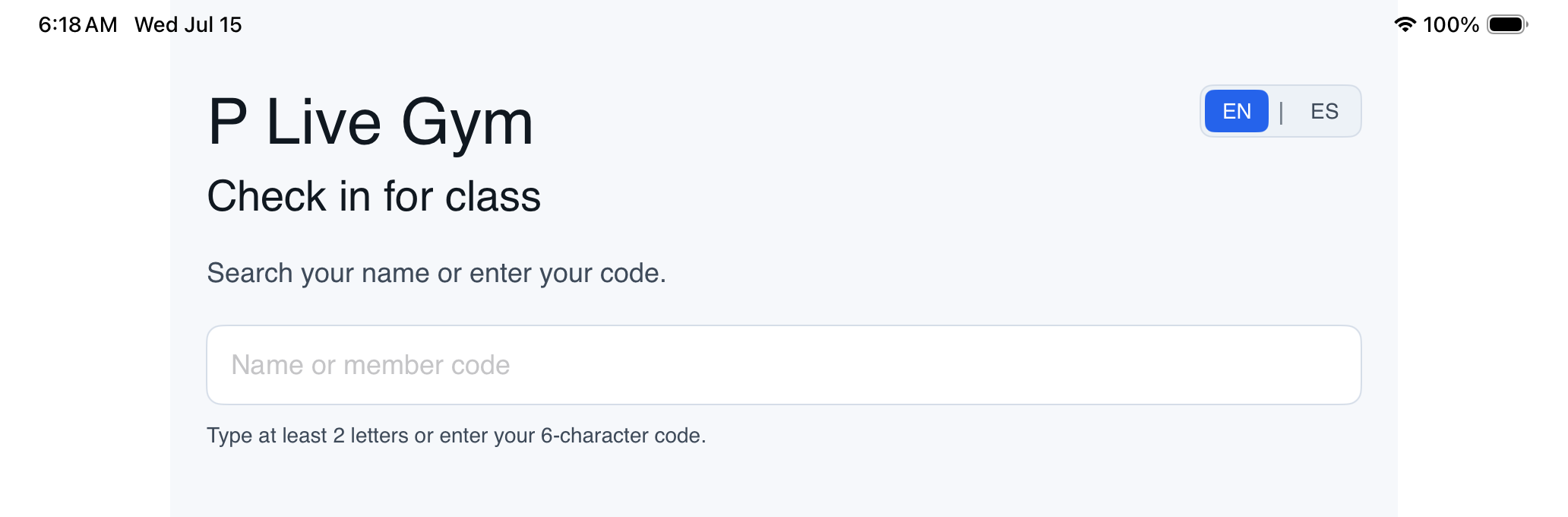
While the kiosk is connected, the app keeps the screen awake between check-ins. Students search for their name to register their entry. A student who has a member code can tap I have a code and enter it instead. Codes are optional.
A check-in can be undone for a few seconds after it is recorded. Students can also switch the kiosk between English and Spanish.
Disconnect the Kiosk
Triple-tap the gym name to open owner controls, then disconnect the device. You can also revoke the kiosk link from the Kiosk page in MatAdmin.