When To Use Self Check-In
Use Self Check-In when you want students to check themselves into eligible classes from a front desk device.
Self Check-In is useful when:
- Students arrive while the instructor is teaching or greeting people.
- A front desk tablet or computer is available near the entrance.
- You want attendance started before class without stopping the room.
Self Check-In complements instructor attendance. Instructors can still run attendance manually and review the class list when needed.
What Gym Owners Typically Use This For
Use Self Check-In and member codes when you want to:
- Keep arrival check-in moving while instructors focus on class.
- Give students a simple way to check in from a trusted front desk device.
- Help staff handle busy class transitions without sharing owner access.
- Rotate a kiosk link if a device changes or a link was shared too widely.
- Regenerate a student's member code when the student needs a fresh code.
How Self Check-In Works
Self Check-In uses a kiosk link on a trusted front desk device. Students search for their name, choose an available class, and check in.
Member codes are unique to each student, and they are optional. A student who has a code can tap I have a code and enter it to find their record faster. Name search works for every student, with or without a code.
Check-In Rules
From the Kiosk page, the owner can choose a scheduled check-in window or open check-in. The scheduled window keeps student check-in tied to the class schedule. Open check-in lets students choose eligible classes from past days as well as the current or next class.
In open check-in, a past-day check-in is recorded on the day that class ran. Each check-in counts as a trial session when the student is on a trial, including a backdated check-in.
Set Up A Kiosk
- Sign in to MatAdmin as the academy owner or an admin who manages attendance setup.
- Open the Kiosk area.
- Create a kiosk link.
- Use a clear label, such as "Front Desk iPad" or "Lobby Computer".
- Copy the kiosk link when MatAdmin shows it.
- Open that link on the front desk device you plan to use for check-in.
- Leave the device where staff can keep an eye on it during class arrival.
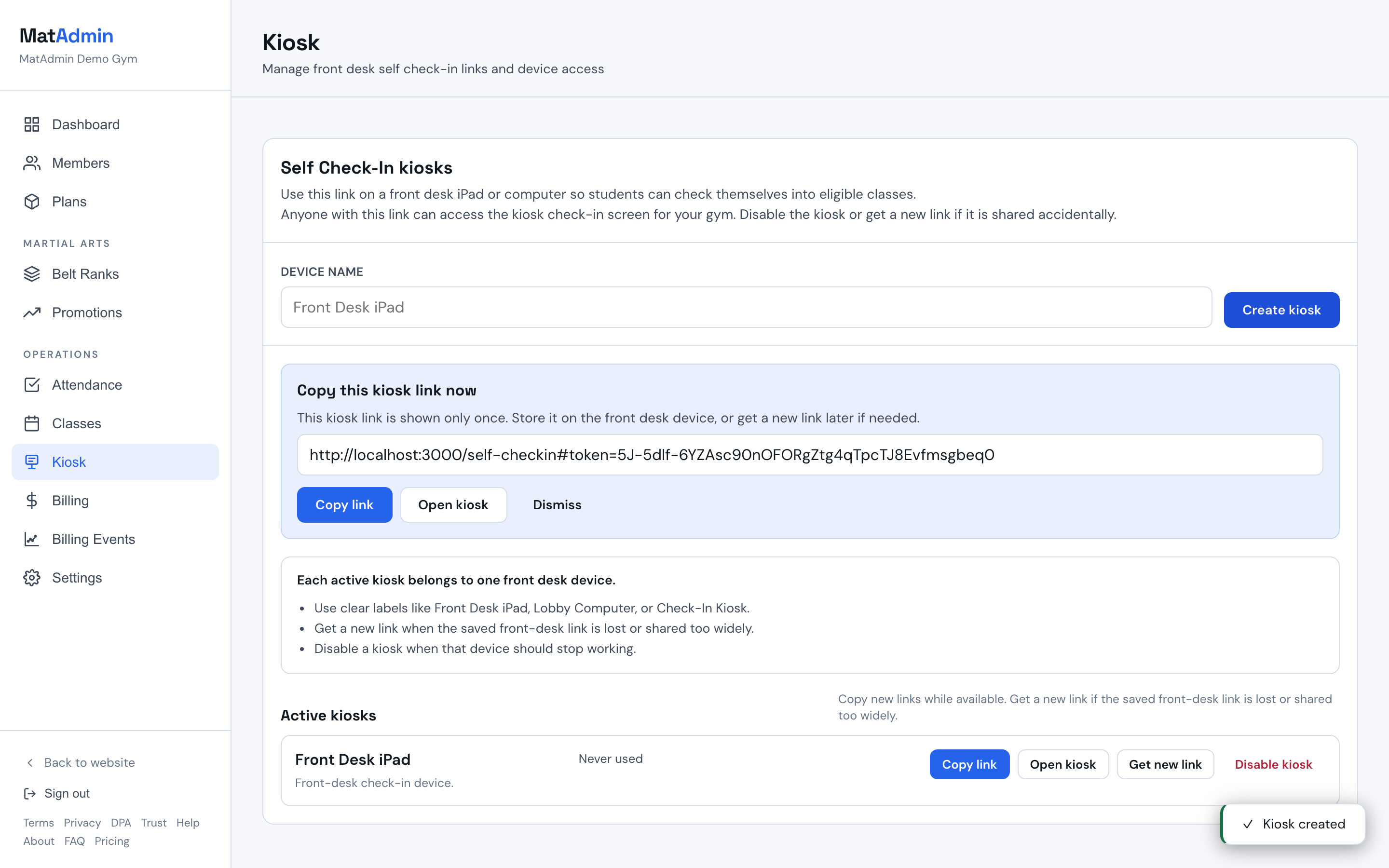
Kiosk links are meant for trusted staff devices. Do not post a kiosk link on a public page, in a public group chat, or anywhere outside your normal front desk workflow.
Share The Kiosk With Students
Students do not need owner access to use the kiosk. They use the front desk device to search their name.
Before class, tell students where the kiosk is and what to do:
- Search for your name and tap it. If you have a member code, you can tap I have a code and enter the code instead.
- Choose the class you are attending.
- Confirm the check-in.
- Ask the instructor or front desk for help if your name, code, or class does not appear.
Understanding Member Codes
A member code is a short code tied to one student. It helps students check in faster, especially when several students have similar names.
Member codes are optional, and they are never required. A code is a speed shortcut, not proof of identity. Every student can check in with name search, whether or not they have a code.
To use a code at the kiosk, the student taps I have a code first. The kiosk then asks for the 6-character code. Typing a code into the plain name search box only searches names and will not find the student. To go back to name search, the student taps Search by name or clears the box.
In the student record, MatAdmin shows whether the student has an active Self Check-In Code.
Give member codes only to the student or their parent or guardian when appropriate for your academy.
Regenerate A Member Code
Regenerate a member code when:
- The student lost the code.
- The code was shared with the wrong person.
- You want to give the student a fresh code.
To regenerate a code, open the student record and use Regenerate code in the Self Check-In Code area. The old code stops working after the new one is created.
Rotate Or Replace A Kiosk Link
Rotate or replace a kiosk link when:
- The front desk device changed.
- The saved link was lost.
- The link was shared outside the staff or front desk workflow.
In the Kiosk area, use Rotate to create a fresh kiosk link for that device. Use Revoke when a device link should stop working.
After rotating a link, open the new link on the front desk device.
Tips For Running Class Smoothly
- Set up the kiosk before students arrive.
- Keep the kiosk on a device staff can see.
- Ask students to check in as they arrive, not after class starts.
- Have the instructor scan the attendance list once class begins.
- Use manual attendance when the room is busy or a student needs help.
Common Issues
If a student cannot find their name, check that the student has been added to MatAdmin.
If a member code does not work, check that the student tapped I have a code before entering it. A code typed into the plain name search box only searches names. Then confirm that the student has an active code. If needed, regenerate the code and give the student the new one. Name search always works, so the student can still check in by name.
If the expected class is not available, check that the class exists and is scheduled correctly.
If the kiosk link does not open, rotate the kiosk link and open the new link on the front desk device.
When Instructors May Still Want Manual Attendance
Manual attendance is still useful when:
- A new student has not been added yet.
- The kiosk device is not available.
- A student is unsure which class to choose.
- The instructor wants to confirm late arrivals.
- You need to correct attendance after class.
Self Check-In helps with arrival flow, but the instructor still owns the final class attendance check.