What This Helps You Do
Create the first class you will use for attendance in MatAdmin.
Start with one real class your academy already runs. You can add more once the first one works.
Before You Start
Know the basic class details:
- Class name
- Day and time
- Instructor, if you track one
- Who usually attends
Keep the name simple. Use something your team would say out loud, like "Adult Fundamentals" or "Kids BJJ".
Step-by-Step Instructions
- Open MatAdmin.
- Go to the area where classes are managed.
- Add a new class.
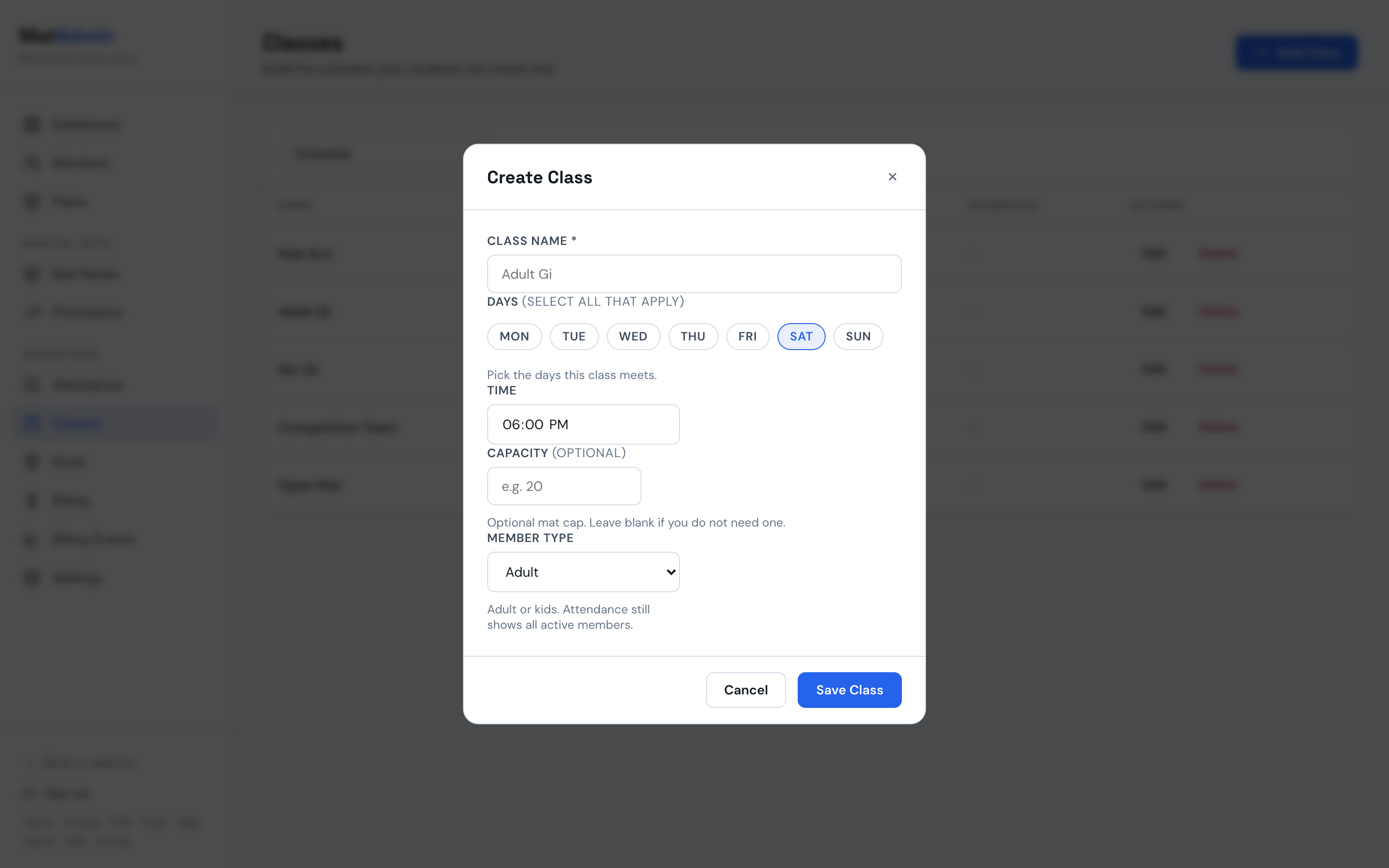
- Enter the class name.
- Add the schedule details MatAdmin asks for.
- Set the class Length in minutes; it determines when scheduled kiosk check-in closes.
- Save the class.
- Check that the class appears where you expect to use it for attendance.
If your schedule has several classes on the same day, use clear names and times so instructors can quickly pick the right class during attendance.
What Should Happen Next
The class should be available when you are ready to check students in. In class lists and attendance views, use the schedule time to confirm you are opening the right class.
Use one real class first. After it works, add the rest of your weekly schedule.
Common Mistakes
- Creating every possible class before testing one real class.
- Using names that are too vague, like "Training" or "Class".
- Making separate classes for tiny schedule differences you do not actually track.
- Relying only on memory when two classes have similar names. Add enough schedule detail for staff to choose quickly.