What This Helps You Do
Use payment history to review payment records your academy has logged in MatAdmin.
Payment history helps owners and staff see when a payment was recorded, which member it was for, how much was recorded, what method was used, and any short notes your team added.
This article is about reviewing payment history in MatAdmin. It is separate from your academy's own MatAdmin subscription and separate from student billing setup.
Do not use this article as accounting, tax, refund, dispute, payout, or legal advice.
What Gym Owners Typically Use This For
Use payment history when you need to:
- Check whether a payment was logged for a specific member.
- Review recent payments across the academy.
- Confirm the amount, method, date, or notes on a payment record.
- Coordinate front desk or owner follow-up before contacting a student.
- Separate manually logged payment records from hosted student billing activity.
Where To Find Payment History
You can review payment history in two places.
On a member's profile, use the Payment History section to review payment records for that one member.
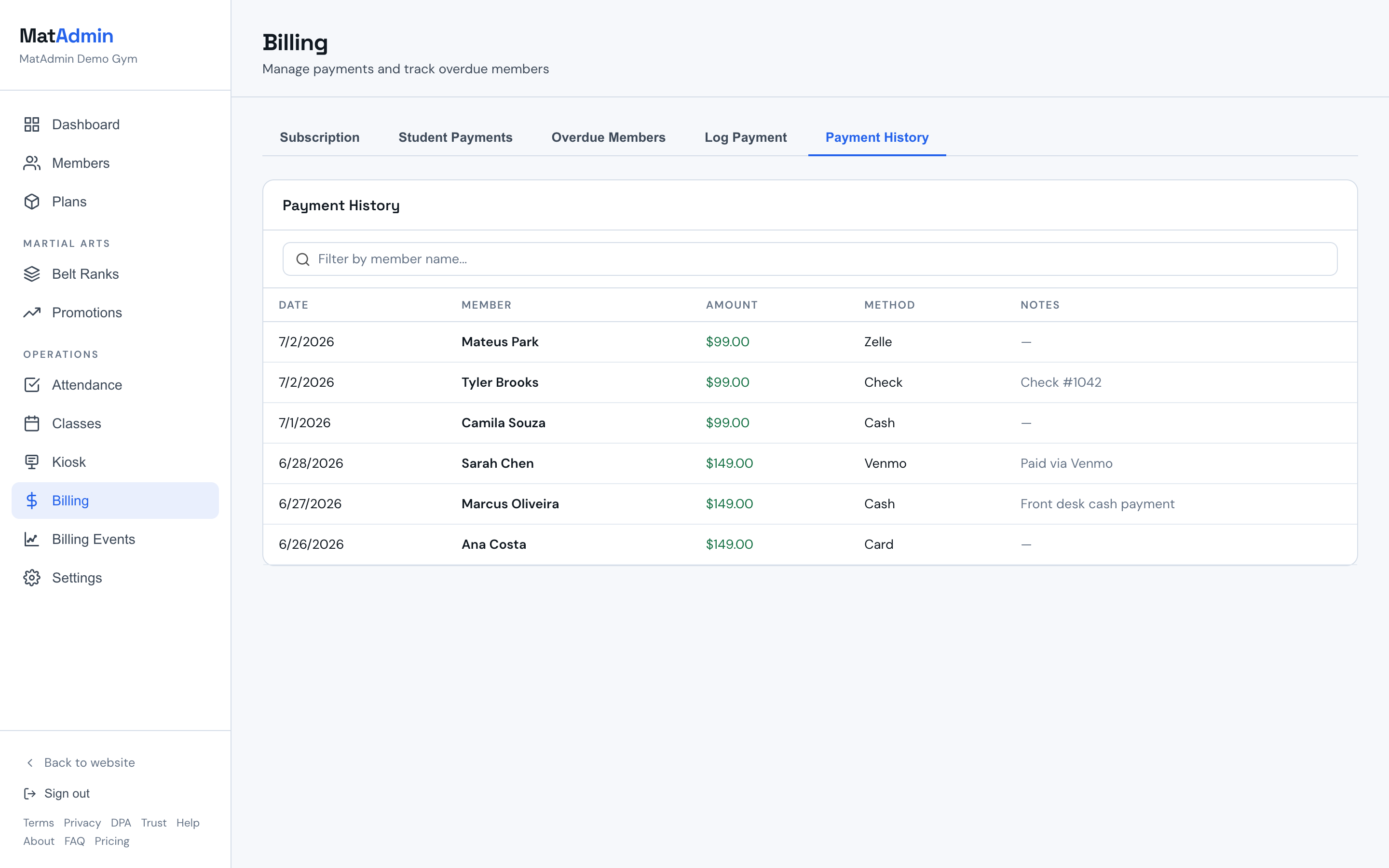
On the Billing page, use the Payment History tab to review a broader list of payment records across the academy. The Billing page also includes the Log Payment tab when you need to add a new payment record.
Understanding Payment Records
Payment history shows the details MatAdmin has for each logged payment record.
Common fields include:
- Date: when the payment was recorded for.
- Amount: the payment amount entered in MatAdmin.
- Method: how the payment was received, such as cash, check, Venmo, Zelle, PayPal, Stripe payment link, card, or other.
- Notes: short internal context your team added when logging the payment.
Keep notes practical and professional. Do not store full card numbers, bank details, passwords, private login links, or sensitive personal information in payment notes.
Logging A Payment
Use Log Payment when your academy needs to record a payment received outside the hosted student billing flow.
To log a payment, choose the member, enter the amount, choose the payment date, select the method, and add optional notes. After the payment is saved, MatAdmin adds it to payment history, marks the member's billing status active, and advances their next billing date.
Logging a payment is a recordkeeping action in MatAdmin. Before relying on it for member follow-up, make sure the amount, date, method, and member are correct.
Member Payment History vs Billing Page Payment History
Member payment history focuses on one student or member.
Use the member profile when you are already reviewing that member's details, membership, attendance, student billing status, or follow-up history.
The Billing page Payment History tab gives a broader payment view across the academy. Use it when you want to scan recent payments, search by member name, or review payment activity without opening each member profile.
Understanding Student Billing Status
Student Billing status is separate from payment-history review.
On a member profile, the Student Billing section may show hosted student billing information such as billing status, cached Stripe customer details, cached subscription details, cached Checkout details, latest invoice cache, last known payment outcome, last update, or cancellation scheduling.
That section helps you understand hosted student billing status for the member. It is not the same thing as the Payment History section, and it does not replace reviewing logged payment records when you need payment history.
Reviewing Billing Events
Billing Events provide operational billing context for hosted student billing.
Use Billing Events when you need to understand recent student payment activity, payment updates, failed payment context, or items that may need review.
Billing Events are not a replacement for payment history. They help explain billing activity and follow-up context, while payment history shows payment records logged in MatAdmin.
Common Mistakes
- Looking at payment history when you meant to review your academy's own MatAdmin subscription.
- Treating Student Billing status as the same thing as a logged payment record.
- Expecting Billing Events to replace payment history.
- Logging a payment against the wrong member.
- Leaving notes too vague for another staff member to understand later.
- Adding sensitive payment details or private personal information to notes.
- Assuming a payment record answers tax, refund, dispute, payout, or legal questions.
When To Contact Support
Contact support if:
- A payment record is missing or looks different from what you expected.
- You are unsure whether to review Payment History, Student Billing, Billing Events, or your MatAdmin subscription.
- A member's payment history and Student Billing status appear confusing together.
- The Billing page or member Payment History section will not load.
Need help? Contact support at support@matadmin.app and include your academy name plus a short description of the issue.
Do not send full card numbers, bank details, passwords, or private login links in a support message.