What This Helps You Do
Connect student payment billing so your academy can prepare membership and payment workflows in MatAdmin.
Use this article when you are ready to set up student payments after your basic class, student, and attendance flow is working.
MatAdmin can help owners connect a gym-owned Stripe account, set up online payments for members on configured plans, and open a Stripe-hosted billing portal for eligible members.
This article is about student payment billing. It is separate from your academy's own MatAdmin subscription.
Do not use this article as tax, legal, refund, dispute, or payout advice.
What Gym Owners Typically Use This For
Use student payment billing when you need to:
- Connect the payment setup your academy uses for student memberships.
- Connect a gym-owned Stripe account for hosted student payments.
- Confirm student payment billing is connected before making payment-related membership changes.
- Set up online payments for a member on a configured billing plan.
- Open a member's Stripe-hosted billing portal when that member already has hosted student billing.
- Check whether a student payment setup item still needs review.
- Coordinate with staff before contacting a student about payment follow-up.
- Keep student payment questions separate from your MatAdmin subscription.
Before You Start
Make sure you have:
- Access to the MatAdmin owner account for your academy.
- Accurate business or payment setup details.
- Access to the Stripe account your academy wants to use for student payments, if you plan to use hosted Stripe billing.
- A clear idea of which student memberships you plan to bill through MatAdmin.
If you are still setting up your first class or student list, finish that first. Student payment billing is easier when the daily gym workflow is already clear.
Step-by-Step Instructions
- Sign in to MatAdmin as the academy owner.
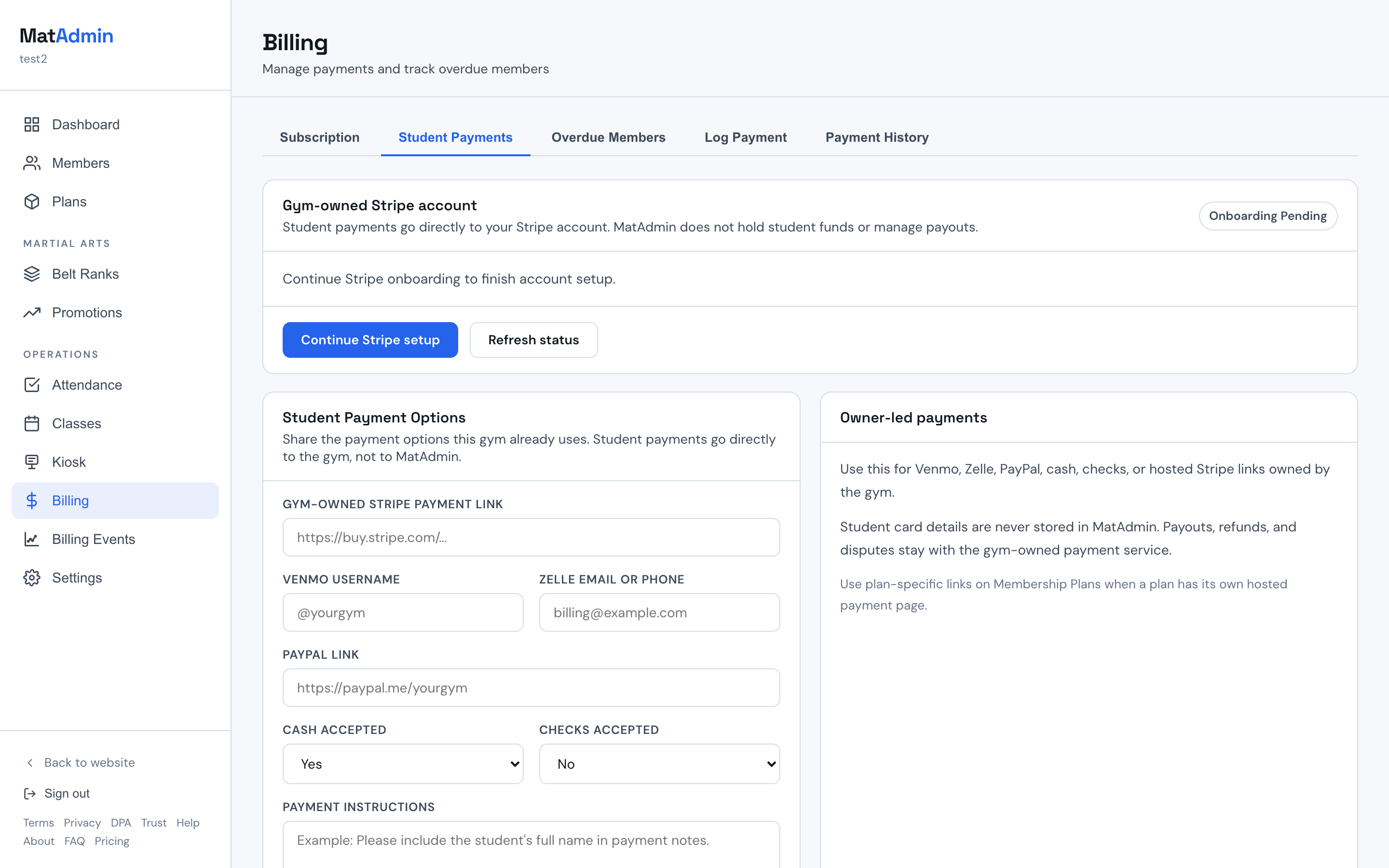
- Open Billing, then open Student Payment Options.
- Review the Gym-owned Stripe account section.
- If Stripe is not connected or still needs setup, choose Connect Stripe or Continue Stripe setup.
- Complete the Stripe-hosted onboarding steps for your academy's Stripe account.
- Return to MatAdmin and confirm the Stripe account status.
- Open or create one member and assign a plan that has online payments turned on.
- For a new member, choose Save & set up payments. For an existing member, choose Set up online payments from the member form or Payment History actions.
- Complete the secure payment setup in the Stripe tab that opens.
Connecting Your Gym-Owned Stripe Account
Student payments processed through hosted Stripe billing go to your gym-owned Stripe account. MatAdmin does not hold student funds or manage payouts directly.
In Student Payment Options, MatAdmin shows a Stripe account status:
- Not connected means no gym-owned Stripe account is connected yet.
- Onboarding pending means setup has started, but Stripe onboarding is not finished.
- Ready means the connected Stripe account is ready for hosted student billing setup.
- Restricted means Stripe needs more information before the account is ready.
- Disabled means Stripe has disabled the account until the listed requirements are resolved.
If the account is not ready, use Connect Stripe or Continue Stripe setup from MatAdmin. After returning from Stripe, refresh the status before setting up online payments for a member.
What Online Payment Setup Requires
Online payment setup is available only when student billing is ready for that member and plan.
Before choosing Set up online payments, confirm that:
- Your gym-owned Stripe account shows as Ready.
- The member is assigned to a hosted student billing plan.
- That plan has a mapped Stripe Price from your connected Stripe account.
- The member does not already have an active hosted student billing subscription.
When those pieces are in place, MatAdmin opens a secure Stripe payment page for the member. Card details are handled by Stripe and are not stored in MatAdmin.
If Stripe setup is not ready, or if the member's plan is not configured for online payments, MatAdmin will not open payment setup yet. Finish the Stripe setup or review the member's billing plan before trying again. If the member was just created, the member remains saved even when Stripe cannot open, so you can retry from Edit Member or Payment History without creating a duplicate.
Managing a Member's Billing Portal
For members who already have hosted student billing, the member profile can show a Manage Billing action.
This opens a Stripe-hosted billing portal session for that member. The owner starts this action from MatAdmin on behalf of the member, and Stripe handles the billing management page.
The Manage Billing action is available only when the member already has a Stripe customer and subscription from hosted student billing. If those records are not present yet, use the member's payment status and billing history to decide the next step.
What Should Happen Next
MatAdmin should show whether the gym-owned Stripe account is ready, still being reviewed, or needs more information.
Once student payment billing is ready, use student membership records carefully. A membership update and a real payment action may not be the same thing.
Reviewing Billing Events
After student payment billing is connected, MatAdmin may show Billing Events for recent student payment activity. Use Billing Events when you need operational context about payment updates, failed payments, or items that need review.
Billing Events are informational. They help you and your team understand what may need attention, but they do not replace checking the student record or contacting support when a payment status is unclear.
Common Mistakes
- Setting up student payment billing before the class and student records are usable.
- Trying to set up online payments before the Stripe account shows as Ready.
- Expecting the member billing portal to appear before the member has a hosted student billing subscription.
- Assuming a saved membership change always changes a payment outside MatAdmin.
- Guessing at business or bank details.
- Treating payout timing, disputes, refunds, or taxes as MatAdmin settings.
- Making student payment changes from memory when a student's membership status is unclear.
When To Contact Support
Contact support if:
- Student payment billing does not show as connected after you finish the setup flow.
- MatAdmin asks for information you do not understand.
- A student's payment or membership status looks different from what you expected.
- You are unsure whether a change affects a real payment.
Need help? Contact support at support@matadmin.app and include your academy name plus a short description of the issue.
Do not send bank details, full card numbers, passwords, or private login links in a support message.