To choose a monthly renewal day for new students, see Billing day and first payment.
What This Helps You Do
Share the public signup page for your academy, or share a link that opens one listed membership plan directly.
People who use an available signup link choose a membership, pay online, and then complete the waiver.
Before You Start
Make sure the plan you want people to join is ready for online signup. The public signup page shows only plans that are:
- Active.
- Standard membership plans.
- Listed publicly.
- Set up for hosted online checkout with a Stripe Price.
If no plan meets those conditions, the signup link is not available to new members yet.
Share Your Academy Signup Page
Use the academy signup page link when you want people to choose from the plans currently listed on your signup page.
- Open Settings.
- Find Public Signup.
- Select Copy signup page link.
- Paste the copied link where you want to share it.
You can also see the same Public signup section on the Plans page.
Add A Signup Button To Your Website
Use Get embed code when you want a ready-to-paste signup button on your website. This is a self-contained button and link snippet, not an iframe. When someone selects the button, it opens the hosted signup page in a new browser tab.
- Open Settings and find Public Signup.
- Select Get embed code.
- Choose the English button or Botón en español code for the language you want people to see.
- Select Copy English code or Copiar código en español.
- Paste the copied code into your website where you want the signup button to appear.
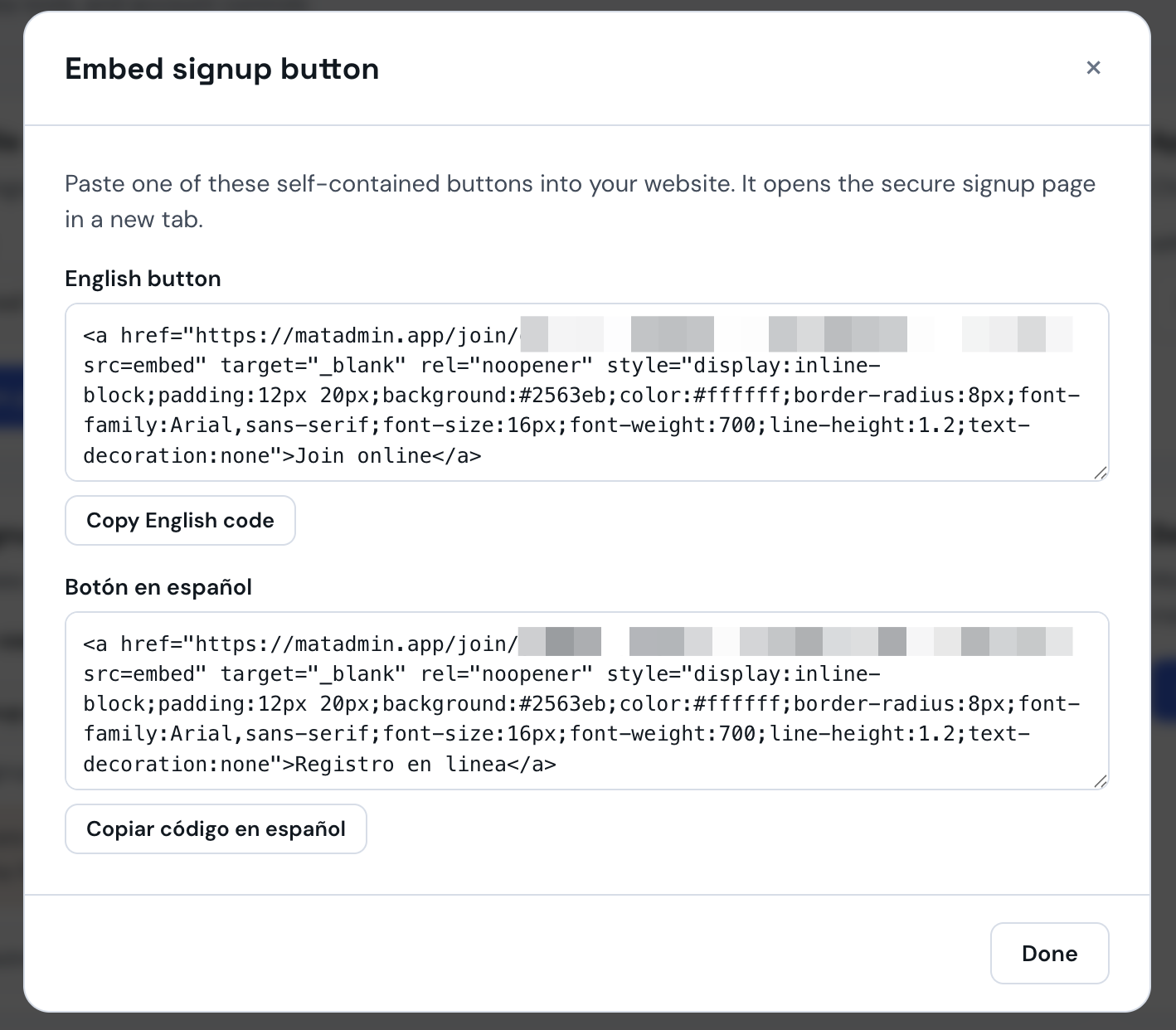
To add a button for one listed plan, open Plans, find the plan that shows On your signup page, and select Get embed code from that plan.
Download A QR Code
Use Download QR when you want people to open your signup page by scanning a code.
- Open Settings and find Public Signup.
- Select Download QR.
- Select Download PNG for print or social graphics.
- Select Download SVG when you need the code to stay sharp at any size for professional printing.
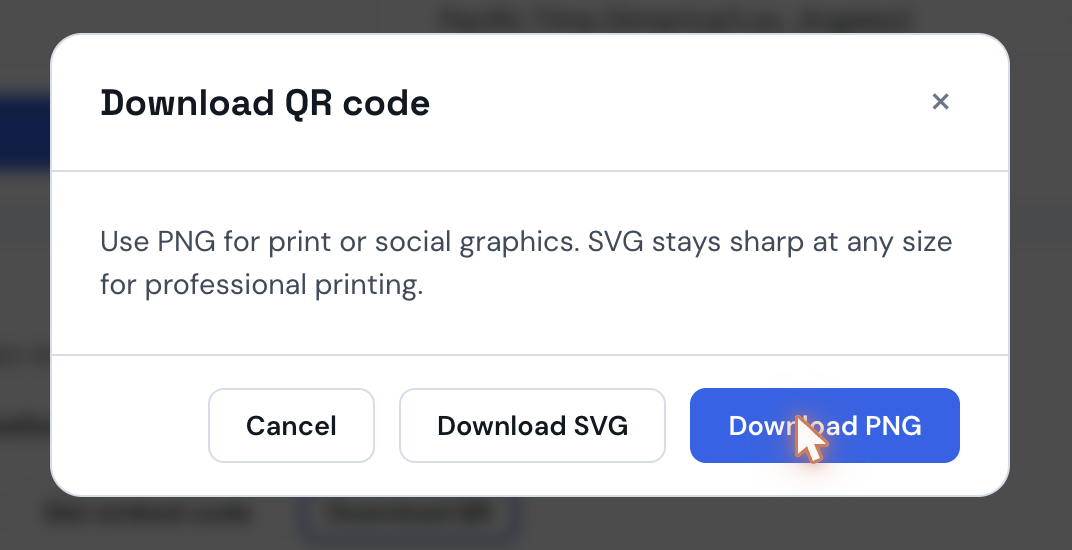
To download a QR code for one listed plan, open Plans, find the plan that shows On your signup page, and select Download QR from that plan.
Share One Plan Directly
Use a plan link when you want the signup page to open a specific plan.
- Open Plans.
- Find the plan that shows On your signup page.
- Select Copy public link.
- Paste the copied link where you want to share it.
The plan must be listed publicly before MatAdmin shows its public link.
Add Or Remove A Plan From Your Signup Page
On the Plans page, a plan that is ready for hosted online checkout can show List publicly. Select it to add the plan to your signup page. Select Unlist to remove a listed plan from that page.
If MatAdmin says public signup is unavailable, finish the plan's online payment setup first.
What Should Happen Next
The academy signup page shows the currently listed plans. A plan-specific link opens that listed plan directly.
If your signup page has no listed plan, people who open the academy link see that the signup link is not available.
Common Mistakes
- Sharing the academy signup page before adding a plan to it.
- Expecting a private, inactive, or non-standard plan to appear on the public signup page.
- Trying to copy a plan link before the plan is listed publicly.
- Assuming an online payment setup is complete before the plan has a Stripe Price.
When To Contact Support
Contact support if:
- A plan that is active, listed publicly, and ready for hosted online checkout does not appear on the signup page.
- The copied signup link does not open as expected.
- You are unsure whether a plan is ready to sell online.
Need help? Contact support at support@matadmin.app and include your academy name plus a short description of the issue.
Do not send passwords, private login links, full card numbers, or bank details in a support message.