Your gym timezone controls how MatAdmin displays class schedules, attendance records, and reporting throughout the app.
Change Your Gym Timezone
- Open Settings from the left navigation menu.
- In Gym Profile, locate Gym Timezone.
- Select the correct timezone from the dropdown list.
- Click Save gym profile.
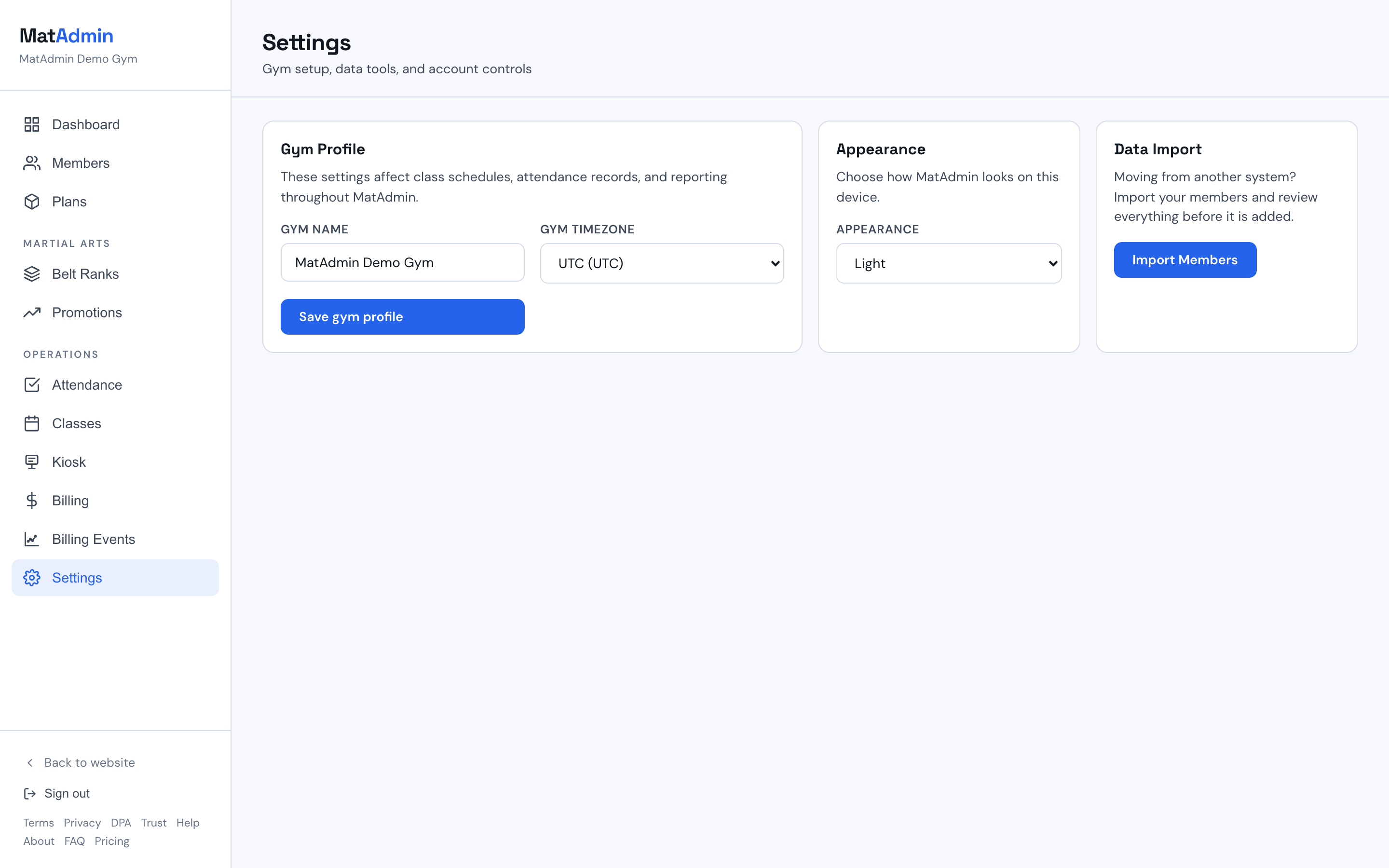
The new timezone will be used throughout MatAdmin for scheduling and attendance-related timestamps.
During New Gym Setup
When a new gym is created, MatAdmin automatically sets an initial timezone based on the device or browser being used during setup.
If the detected timezone is not correct, you can update it later from Settings > Gym Profile.
When Should I Update My Timezone?
Review your gym timezone if:
- Your class times appear incorrect.
- Your gym operates in a different timezone than the device used during setup.
- You have moved locations.
- Attendance records or reports appear to use the wrong local time.
Notes
- Timezone changes are made manually in Settings > Gym Profile.
- MatAdmin does not automatically change your gym timezone after setup.
- Make sure the selected timezone matches the location where your classes are held.