When To Use Class Display
Use Class Display when you want a technique video showing on the room TV while you teach, so students have something to reference without stopping the class to demonstrate again.
Class Display is useful when:
- You want late arrivals to see what the class is working on without interrupting you.
- You are teaching several groups at once and cannot demonstrate for everyone in person.
- Kids classes need a visual reminder of the technique while you move between students.
Class Display complements your teaching. It is a reference on the wall, not a replacement for instruction.
What Gym Owners Typically Use This For
Use Class Display when you want to:
- Put 1 to 3 techniques for today's class on the room TV.
- Let students glance at the screen instead of asking you to repeat a demonstration.
- Move to the next technique from your phone without walking to the TV.
- Keep a display running for the length of class, then end it when class is over.
How Class Display Works
Class Display has two parts. You manage techniques and control the display from the Class Display area in MatAdmin, on your phone or laptop. The room TV shows a separate, simple screen that just plays the video and updates on its own.
Students and the TV itself do not need a MatAdmin account or sign-in.
Add Techniques To Your Library
- Sign in to MatAdmin as the academy owner or an admin who manages Class Display.
- Open the Class Display area.
- Under Technique library, paste a YouTube link for the technique.
- Add a technique name, or leave it blank to use the video's own title.
- Select Add technique.
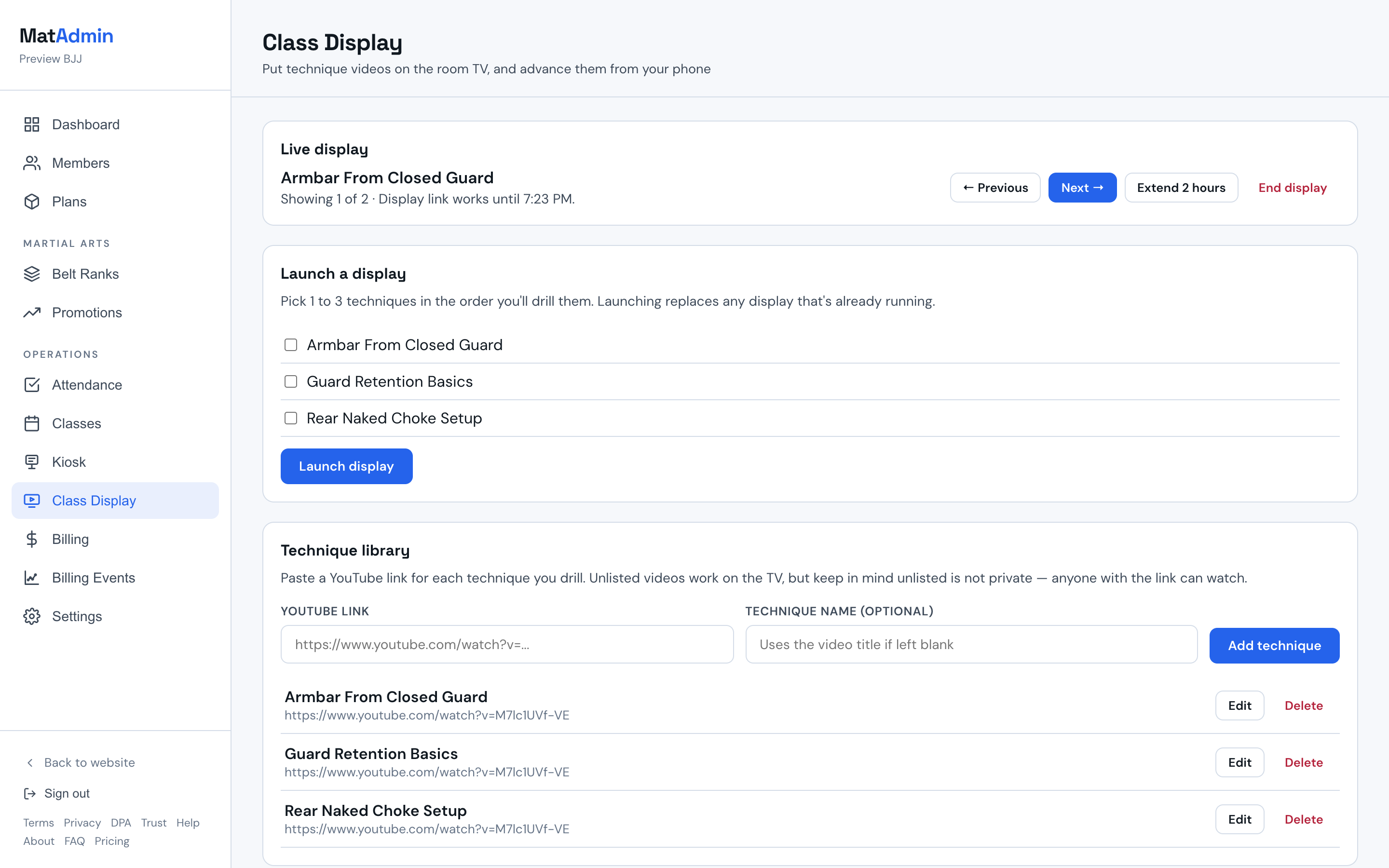
Unlisted YouTube videos work on the room TV. Keep in mind that unlisted is not the same as private: anyone who has the video link can watch it on YouTube directly, not just through MatAdmin.
Launch A Display
- In the Launch a display panel, check 1 to 3 techniques in the order you plan to cover them.
- Select Launch display.
- Copy the link MatAdmin shows you. This link is shown only once.
- Open that link on the room TV.
Launching a new display replaces one that is already running. If class is already using a display, launching again ends the old one right away.
Open The Display On The Room TV
Open the copied link directly on the device connected to your room TV. A few options work well:
- Cast a browser tab to a Chromecast or similar streaming device.
- Connect a laptop or small computer to the TV over HDMI.
- Mirror your phone or tablet screen to the TV (for example, AirPlay or Screen Mirroring).
A TV's own built-in web browser can be the least reliable option. If the display does not load on a smart TV's built-in browser, try casting or mirroring instead.
The video plays muted so it does not interrupt class with sound. Anyone at the TV can turn sound on using the video player's own controls if needed.
Advance Techniques From Your Phone Or Laptop
Once a display is running, use Previous and Next in the Live display panel to move between techniques. You do not need to touch the TV.
The room TV updates on its own within a few seconds of your change.
Extend Or End A Display
A display link works for a few hours. If class runs long, select Extend 2 hours to keep it working.
Select End display to stop the display right away. The TV shows a message that the display has ended.
Tips For A Smooth Class
- Add techniques to your library before class so you are not typing links during instruction.
- Prefer casting, an HDMI-connected device, or screen mirroring over a smart TV's built-in browser.
- Keep the technique list short. Three techniques at a glance is easier to follow than a long list.
- End the display when class is over so the link stops working.
Common Issues
If the display link does not open on the room TV, confirm the TV device is on the same Wi-Fi network as expected, then try casting or mirroring instead of the TV's own browser.
If the TV shows "this video can't be embedded," the video's owner has disabled playback outside YouTube. Pick a different video link for that technique in the library.
If the TV shows "this video isn't available," the video may have been removed or made private. Pick a different video link for that technique.
If editing or deleting a technique does not seem to change what is showing on the TV, that is expected while a display is already running. The display keeps the techniques it launched with. End the display and launch a new one to pick up library changes.
When To Contact Support
Contact support if a display link consistently will not load on more than one device, or if video playback stops working the same way across different techniques.