What This Helps You Do
Import members from a CSV or Excel (.xlsx) file so you do not have to add every student by hand.
MatAdmin includes duplicate review before anything is added, so you can check possible matches, skip rows, or update an existing member when that option is available.
Before You Start
Use this workflow when you are moving a member list from another system or spreadsheet into MatAdmin.
Before you upload, make sure you have time to review the results. Import is not a one-click final action. MatAdmin will ask you to map columns, review warnings, and confirm the import before new member records are created.
If your academy is on the free tier, active-student limits still apply. If an import would exceed the free-tier active-student limit, MatAdmin can block the import and roll it back before anything is committed.
File Types and Limits
MatAdmin supports:
- CSV files
- Excel
.xlsxfiles
Legacy .xls files are not supported. If you have an .xls file, save it as CSV or XLSX first, then upload the new file.
Import limits:
- Maximum file size: 5 MB
- Maximum rows per import: 1,000 member rows
Prepare Your File
Start with the sample template when possible. In the import window, choose Download sample member import template to get a CSV with the expected column names.
MatAdmin can import these fields:
- First Name
- Last Name
- Full Name
- Phone
- Belt
- Membership Status
- Date Joined
- Date of Birth
- Notes
- Guardian Name
- Guardian Email
- Emergency Contact Name
- Emergency Contact Phone
First Name and Last Name are required, unless you map Full Name instead.
Guardian Name, Guardian Email, Emergency Contact Name, and Emergency Contact Phone are currently saved into the member's Notes during import. MatAdmin shows a warning for this so you know those details are being kept as notes, not as structured guardian fields.
Step-by-Step Instructions
- Open MatAdmin.
- Start Import Members from one of these places:
- The Members page.
- The Members empty state, if no members have been added yet.
- The Dashboard Recent Members empty state, if no recent members are shown.
- Settings > Data Import.
- In Step 1, Upload, choose a CSV or XLSX file.
- If needed, download the sample template and adjust your file before uploading.
- In Step 2, Map Columns, match your uploaded columns to MatAdmin fields.
- Make sure First Name and Last Name are mapped, or map Full Name instead.
- In Step 3, Review, check each row's status, warnings, duplicate messages, and selected action.
- Change any row action you do not agree with before continuing.
- In Step 4, Confirm Import, review the final counts for rows that will import or update, skipped rows, possible duplicates, and total rows.
- Select Import Members when you are ready.
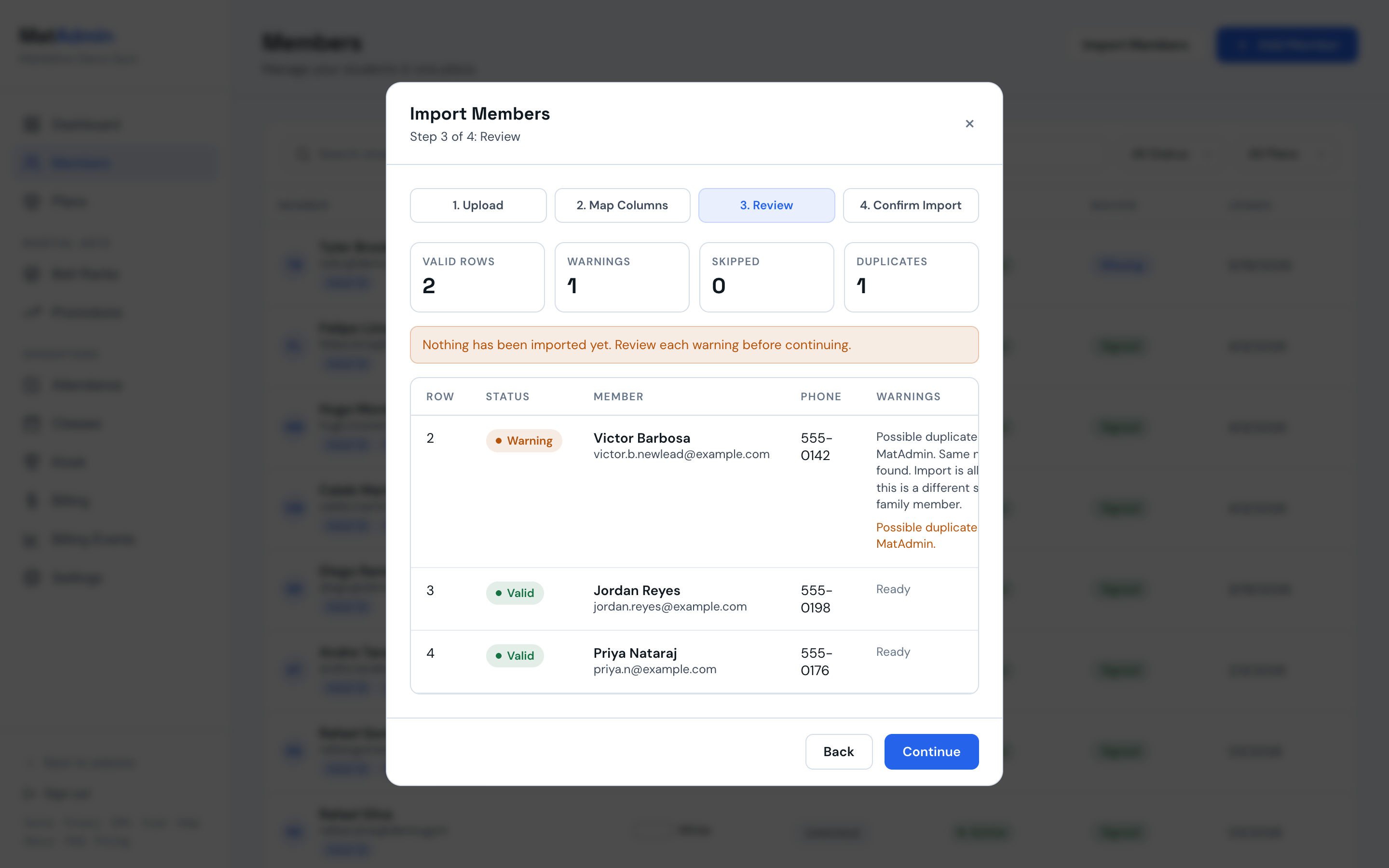
Nothing is added until you confirm the import.
Review Warnings and Duplicates
Duplicate review is a warning system. It helps you decide what to do, but it does not guarantee every possible duplicate will be caught.
MatAdmin checks for possible duplicates already in MatAdmin when a row has:
- The same email as an existing member.
- The same first and last name plus the same phone number.
- The same first and last name plus the same date of birth.
- The same first and last name only.
MatAdmin also checks for possible duplicates inside the uploaded file when rows share:
- The same first and last name plus the same email and phone number.
- The same first and last name plus the same email.
- The same first and last name plus the same phone number.
- The same full name.
For valid rows and warning rows, you may see these actions:
- Import Anyway: add the row as a new member.
- Skip Row: leave that row out of the import.
- Update Existing Member: update a matched member already in MatAdmin.
Update Existing Member is only available when MatAdmin matched the row to an existing member. Same-upload duplicates do not offer update or merge. For those rows, review the warning and choose Import Anyway or Skip Row.
Invalid rows are forced to Skip Row. Fix the source file and upload again if you want to import those rows later.
What Happens After Import
After the import finishes, MatAdmin shows how many members were imported or updated and how many rows were skipped.
From the success screen, you can:
- View Members.
- Download import report.
The import report is generated for that completed import so you can review row actions and messages. It is not stored as ongoing import history in MatAdmin.
Common Mistakes
- Uploading a legacy
.xlsfile instead of saving it as CSV or XLSX first. - Skipping column mapping and assuming MatAdmin knows every custom spreadsheet header.
- Forgetting that First Name and Last Name are required unless Full Name is mapped.
- Treating duplicate warnings as automatic merging.
- Importing every warning row without checking whether some should be skipped.
- Expecting same-upload duplicate rows to merge into one member automatically.
- Forgetting that active-student limits still apply on the free tier.
When to Contact Support
Contact support if:
- Your CSV or XLSX file will not upload after you check the file type and size.
- You are unsure how to map columns from another system.
- Duplicate warnings do not make sense for your member list.
- An import is blocked and you are unsure whether the free-tier active-student limit is involved.
- You expected a row to update an existing member, but Update Existing Member is not available.